
To perform this task, your phone must support NFC writes and must be running Android version 9 or later or iOS version 10 or later.
The O3 Edge is equipped with a near-field communication (NFC) antenna at the location shown below in red:
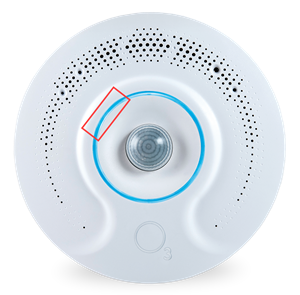
In version 2.0 firmware and later, you can factory reset the O3 over NFC using the Proviso app on your phone. Typically, this is only done as a last resort to recover an O3 from a bad setup. The factory reset clears all custom settings, including passwords. These settings cannot be recovered once the factory reset process has begun.
- Enable NFC on your phone (under connection settings in your phone).
- Open Proviso, and select NFC as the connection type.
- Hold your phone near the NFC antenna on the O3 and wait for the confirmation check mark to display.
Note: A 'Feature Coming Soon' message displays. This does not impact your factory reset. - Select
 in the upper right corner of the screen, then select Factory reset.
 - Select OK.
- Reboot the O3 to complete the process.
Troubleshooting
During the factory reset procedure, if Proviso shows an error message 'Factory reset incomplete', you need to power cycle or reboot the O3 before trying again.
This error can occur when the mobile device is unable to write the full factory reset command through NFC, due to not being close enough to the antenna or the device moving while the write is occurring.
Comments
0 comments
Please sign in to leave a comment.